Prepare the inputs
Choose one well-lit portrait and a short driver clip with a similar camera angle. Crop distractions and keep the face large enough to read clearly.
Practical tutorial
This guide shows how to prepare a source image, choose a driving video, run a LivePortrait animation, and improve the result without guessing at every setting.
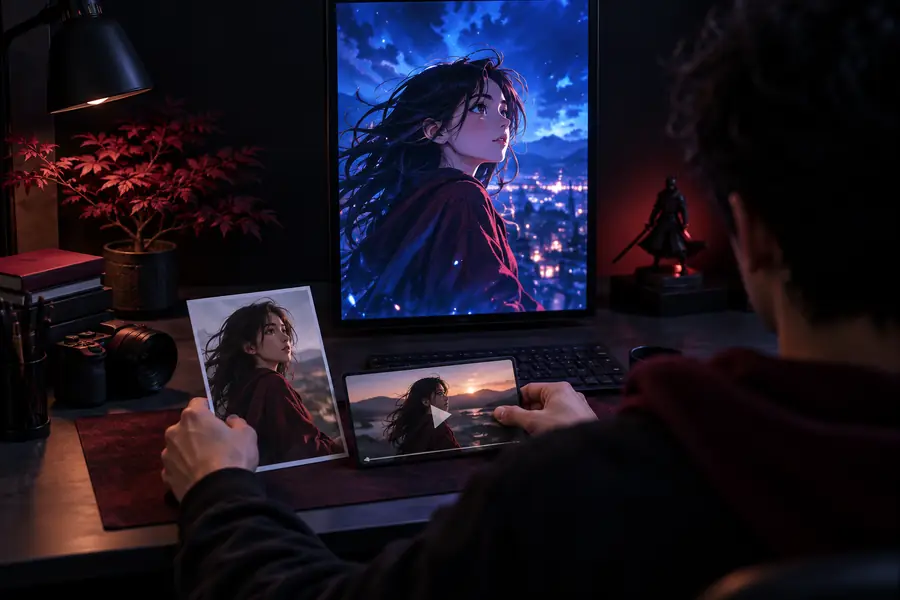
A good input does more for consistency than aggressive adjustments. Check these essentials before starting your first run.
The basic workflow has three stages: prepare clean inputs, transfer motion, then inspect and refine the output.
Choose one well-lit portrait and a short driver clip with a similar camera angle. Crop distractions and keep the face large enough to read clearly.
Upload the source image and driving video, then start with the default motion settings. Let the first pass reveal whether the inputs are compatible.
Watch the eyes, mouth, jaw, hair, and background across the full clip. Replace the driver or tighten the crop before making complex adjustments.
Most disappointing outputs come from input mismatch, not from a lack of advanced controls. Use this checklist before changing several variables at once.
Multiple faces can confuse the subject selection.
Fast turns and cuts can create unstable transitions.
Large pose differences often distort the cheeks or jaw.
Strong contrast can make expressions look uneven.
A shorter useful segment is easier to evaluate.
This makes later comparisons easier.
Once the basic workflow is clear, these related guides explain where to run the model and how its input-output options differ.
Compare browser-based ways to test a LivePortrait workflow without building a local interface.
See how the AI model transfers facial motion from a driving performance to a still portrait.
Understand when a video-driven workflow is useful and what changes between source and output clips.
Different audiences need different levels of control. Start with the simplest panel that matches your goal, then move to a more configurable workflow only when needed.
Use one portrait and one short driver, keep the default settings, and judge the complete clip before making changes. This gives you a baseline and prevents several small edits from hiding the real cause of an artifact.
Prepare a consistent source-image style and record driver clips with the same camera distance. Repeatable framing makes a series of animated portraits look more coherent and makes failed takes easier to diagnose.
When you need more control, change one setting or one input at a time and retain the previous result. Separate input problems from rendering problems by testing the same driver against a different portrait.
LivePortrait moved from a research-style motion-transfer workflow toward simpler hosted experiences, but the core logic remains the same: source, driver, inference, review.
Research demonstrations made it easier to see how a driving facial performance could animate a still portrait while preserving much of the source identity.
Users began adapting the model through notebooks, demos, node graphs, and hosted interfaces, creating more ways to experiment with the same basic inputs.
Tutorials and examples increasingly emphasized portrait framing, driver selection, lighting, and artifact review rather than relying on a single magic setting.
The most dependable approach remains preparation, a conservative first pass, and targeted refinement after watching the complete animation.
A before-and-after comparison is most useful when the framing stays stable. Look for natural eye motion, mouth shape, jaw edges, and background consistency.
Drag the divider to inspect facial motion and edge stability.
Use the preparation checklist, begin with a conservative driver, and review the complete result before refining it. A clear baseline makes every later improvement easier to measure.
These answers address the questions people commonly ask when learning a LivePortrait workflow from the beginning.
You need a suitable source portrait and a driving video that shows the facial motion you want to transfer. A clear face, steady framing, and compatible head angles usually matter more than complicated settings.
Choose a clip with one visible face, steady lighting, and the expression or head movement you want. Avoid rapid cuts, severe profile turns, heavy occlusion, and movements that are much larger than the source portrait can support.
Distortion often comes from a poor source crop, mismatched head angles, fast driver motion, or shadows across important facial features. Test a cleaner portrait or calmer driver before changing several controls at once.
The simplest workflow starts with a still portrait and uses a video as the motion driver. If your goal is video-to-video transformation, use a workflow designed for that input pattern and check how it handles identity, framing, and temporal consistency.
Use moderate expressions, keep the face well framed, and choose a driver whose pose resembles the source. Watch the full clip for eye, mouth, hair, and background artifacts instead of judging only a single attractive frame.